AutoDesk - Big Savings Alert – Don’t Miss This Deal - Ends In 1d 00h 00m 00s Coupon code: 26Y30OFF
  1. Home
  2. AutoDesk
  3. ACP-01101 Exam
  4. Free ACP-01101 Questions

Free Practice Questions for AutoDesk ACP-01101 Exam

Pass4Future also provide interactive practice exam software for preparing AutoDesk Certified Professional in AutoCAD for Design and Drafting (ACP-01101) Exam effectively. You are welcome to explore sample free AutoDesk ACP-01101 Exam questions below and also try AutoDesk ACP-01101 Exam practice test software.

Page:    1 / 14   
Total 97 questions

Question 1

Exhibit.

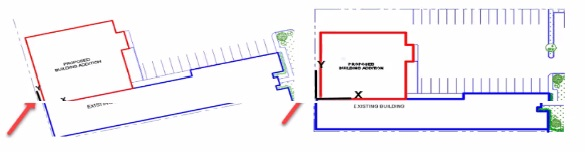
A CAD designer is working on a proposed building addition. The building is oriented on the site at an angle as shown in the exhibit (left).

Without rotating any geometry how should the CAD designer orient the drawing so that it is orthogonal to the screen as shown in trio exhibit on too right?


Answer : B

Identify the Current UCS:

Before changing the view, ensure that the UCS (User Coordinate System) is correctly oriented with the angled geometry.

If necessary, use the UCS command to align the UCS with the angled building addition.

Use the PLAN Command:

Type PLAN in the command line and press Enter.

When prompted, choose the Current UCS option. This option adjusts the view so that it becomes orthogonal (aligned) to the current UCS.

Result:

The drawing will now be oriented orthogonally on the screen, as shown in the exhibit on the right, without rotating any actual geometry.


AutoCAD Documentation on the PLAN command: PLAN Command

Question 2

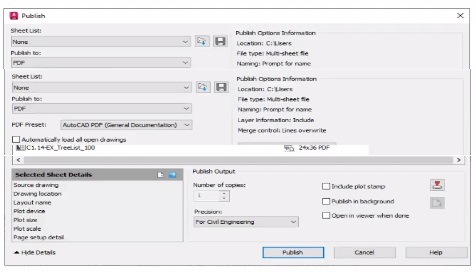
Refer to exhibit.

(Note Exhibit shown is the AutoCAD interface in Windows which the AutoCAD tor Mac version diners in appearance, the correct answers correlate in the options.]

Tim four tree list sheets need to be plotted to PDF al half stale (12x18).

The sheet drawings shown have a page setup named 12x10 PDF predefined Willi those settings.

What should the CAD designer do 10 plot the requested sheets?


Answer : B

Open the Sheet Set Manager: Type SHEETSET in the command line and press Enter.

Modify Page Setup: Right-click on the sheet set or individual sheets and select Properties.

Set Page Setup: Change the page setup to 12x18 PDF.

Publish: Click Publish to generate the PDF with the desired settings.


AutoCAD Help Documentation on Publishing Drawing Sheets

Question 3

A CAD designer needs to create an associative array along a curved path The object being arrayed must remain in its current orientation.

While creating the Path Array, how should the designer ensure the orientation of the object?


Answer : C

When creating a path array in AutoCAD, the objects being arrayed typically align with the direction of the path by default. To maintain the original orientation of the objects while following the curved path, you should turn off the 'Align items' option.

Select the Object: Choose the object you want to array along the path.

Path Array Command: Use the ARRAYPATH command or go to the Array command and choose Path Array.

Select Path: Select the path (curved line or arc) along which the objects will be arrayed.

Turn Off Align Items: In the Array options, turn off the 'Align items' checkbox to ensure that the objects maintain their original orientation.

This will keep the orientation of each object the same as the original, regardless of the curvature of the path.


Question 4

[Note: The Mac version Is shown in parentheses.]

The ETRANSMIT command Is used to send a package of drawings to a client. The client now states that every drawing file that 15 opened is looking tor SHX tiles that they do not have

How should the Transmittal Setup (Package Drawing) dialog he modified to include the missing SHX files'?


Answer : C

Open ETRANSMIT Command: Type ETRANSMIT in the command line and press Enter to open the Create Transmittal dialog box.

Open Transmittal Setup: Click on the Transmittal Setup button to modify the settings.

Modify Transmittal Setup: In the Transmittal Setup dialog box, make sure to select the option Include fonts to ensure SHX files (fonts) are included in the transmittal package.

Save Changes: Click OK to save the settings and then create the transmittal package. This will ensure that all necessary SHX files are included with the drawings sent to the client.


AutoCAD Help Documentation on ETRANSMIT Command

Question 5

A drawing contains a Table sObject While trying to edit a cell, the CAD designer notices a chain link symbol with a padlock on it After selecting the cell, which method should the CAD designer use to edit the cell?


Answer : B

Identify the Data Link: Select the table cell that shows the chain link with a padlock icon. This indicates it is linked to an external data source.

Locate the Data Link: Right-click the table and choose Data Links. Note the file path of the linked data file.

Open the Data Link File: Open the linked data file (e.g., an Excel spreadsheet) in its respective application.

Edit the Cell: Make the necessary changes to the cell in the external data file and save the changes.

Update in AutoCAD: Return to AutoCAD and the table should automatically update to reflect the changes made in the external file.


AutoCAD Help Documentation on Data Linking in Tables

Page:    1 / 14   
Total 97 questions