Microsoft - Big Savings Alert – Don’t Miss This Deal - Ends In 1d 00h 00m 00s Coupon code: 26Y30OFF
  1. Home
  2. Microsoft
  3. MS-740 Exam
  4. Free MS-740 Questions

Free Practice Questions for Microsoft MS-740 Exam

Pass4Future also provide interactive practice exam software for preparing Microsoft Troubleshooting Microsoft Teams (MS-740) Exam effectively. You are welcome to explore sample free Microsoft MS-740 Exam questions below and also try Microsoft MS-740 Exam practice test software.

Page:    1 / 14   
Total 121 questions

Question 1

A company configures IP address 10.3.0.0 as the Location Information Service subnet.

The Microsoft Teams client does not display the emergency address for a user. You confirm that the user has a correctly assigned and validated E911 address that includes geo-coordinates.

You observe the following record in the Teams log:

You need to identify the root cause of the issue.

Which segment of the Teams log record identifies the cause of the issue?


Answer : B


Question 2

A company configures dynamic emergency calling.

Users report that when they place emergency calls, the calls do not connect to the appropriate emergency services providers.

You need to troubleshoot the reported issue.

Which logs should you use?


Answer : D


Question 3

A company uses Microsoft Teams.

Presence information is incorrect in chats.

You need to troubleshoot the issue.

What should you do?


Answer : A


Question 4

Note: This question is part of a series of questions that present the same scenario. Each question in the series contains a unique solution that might meet the stated goals. Some question sets might have more than one correct solution, while others might not have a correct solution.

After you answer a question in this section, you will NOT be able to return to it. As a result, these questions will not appear in the review screen.

You support a Microsoft Teams environment for a company

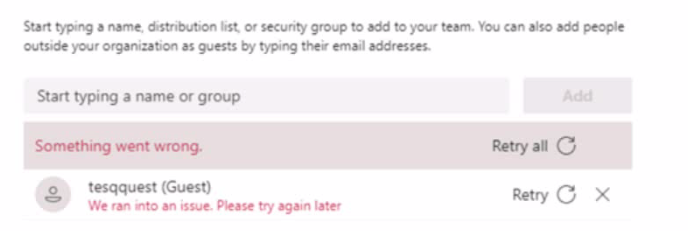
Team owners report that the following error message displays when they try to add a guest to a team.
You need to recommend a solution to resolve the issue.

Solution: Disable and re-enable guest access from the Teams admin center.

Does the solution meet the goal?


Answer : A

The solution does not meet the goal. Disabling and re-enabling guest access from the Teams admin center will not resolve the error message that displays when they try to add a guest to a team. According to the [Troubleshoot Microsoft Teams - Training | Microsoft Learn] module, one of the possible causes of the error message is that the guest's domain is not in the allowed list of domains for the tenant. To resolve this issue, the Teams administrator can confirm whether the tenant domain is in the allowed list by following these steps:

In the Microsoft Teams admin center, go toOrg-wide settings>Guest access.

UnderDomain and email address settings, make sure thatAllow specific domainsis selected.

In theAllowed domainsbox, check if the guest's domain is listed. If not, add it and clickSave.


Question 5

Note: This question is part of a series of questions that present the same scenario. Each question in the series contains a unique solution that might meet the stated goals. Some question sets might have more than one correct solution, while others might not have a correct solution.

After you answer a question in this section, you will NOT be able to return to it. As a result, these questions will not appear in the review screen.

You support a Microsoft Teams environment for a company.

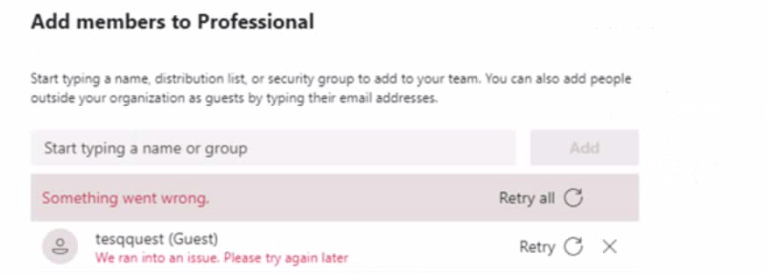
Team owners report that the following error message displays when they try to add a guest to a team.

You need to recommend a solution to resolve the issue.

Solution: Confirm whether the tenant domain is in the Allowed list.

Does the solution meet the goal?


Answer : B

The solution meets the goal. According to the Troubleshoot Microsoft Teams - Training | Microsoft Learn module, one of the possible causes of the error message is that the guest's domain is not in the allowed list of domains for the tenant. To resolve this issue, the Teams administrator can confirm whether the tenant domain is in the allowed list by following these steps1:

In the Microsoft Teams admin center, go to Org-wide settings > Guest access.

Under Domain and email address settings, make sure that Allow specific domains is selected.

In the Allowed domains box, check if the guest's domain is listed. If not, add it and click Save.


Page:    1 / 14   
Total 121 questions